Set Up the Raspberry Pi
These steps prepare the robot's Raspberry Pi for the robot container, once. Each step says where it runs: on your PC, or on the Raspberry Pi over SSH. Afterwards, Start, Check and Stop starts the robot.
1. Flash Ubuntu Server 24.04
On your PC, with Raspberry Pi Imager and the robot's microSD card. Imager asks for these settings, one screen each, shown in the tabs below:
- Device: Raspberry Pi 4.
- OS: Other general-purpose OS → Ubuntu → Ubuntu Server 24.04.5 LTS (64-bit). Ubuntu supports the Raspberry Pi 4 B with this release.
- Storage: your microSD card. Writing erases everything on it.
- Customisation: Imager writes these settings onto the card, and Ubuntu applies them at the first boot.
- Hostname: the robot's name on the network, for example
remo. - Localisation: your time zone and keyboard layout.
- User: a user name and password for the Raspberry Pi, for example
robot. - Wi-Fi: your network's name and password.
- Remote access: Enable SSH with password authentication.
- Hostname: the robot's name on the network, for example
- Write, then put the card into the Raspberry Pi and switch it on.
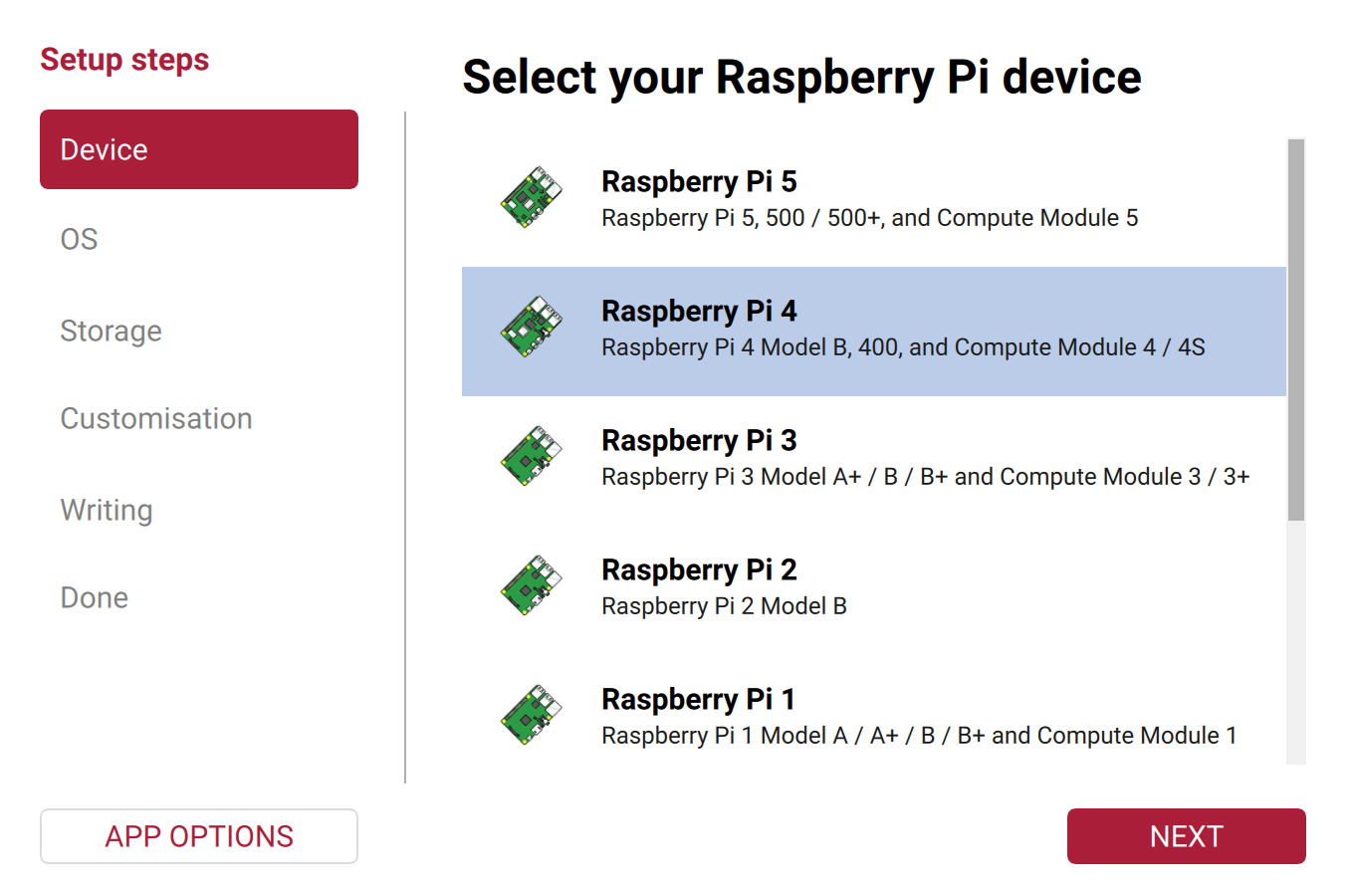
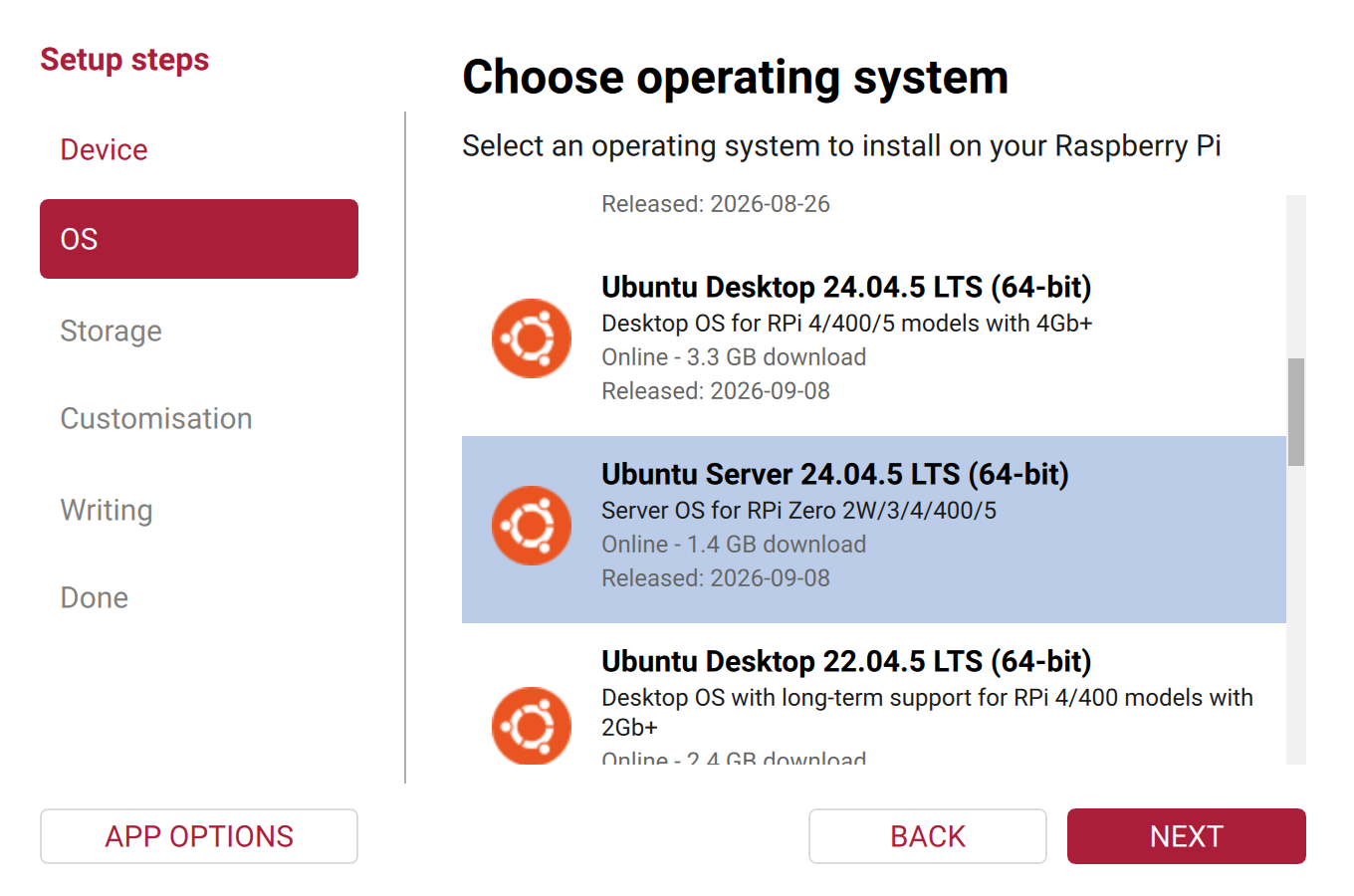
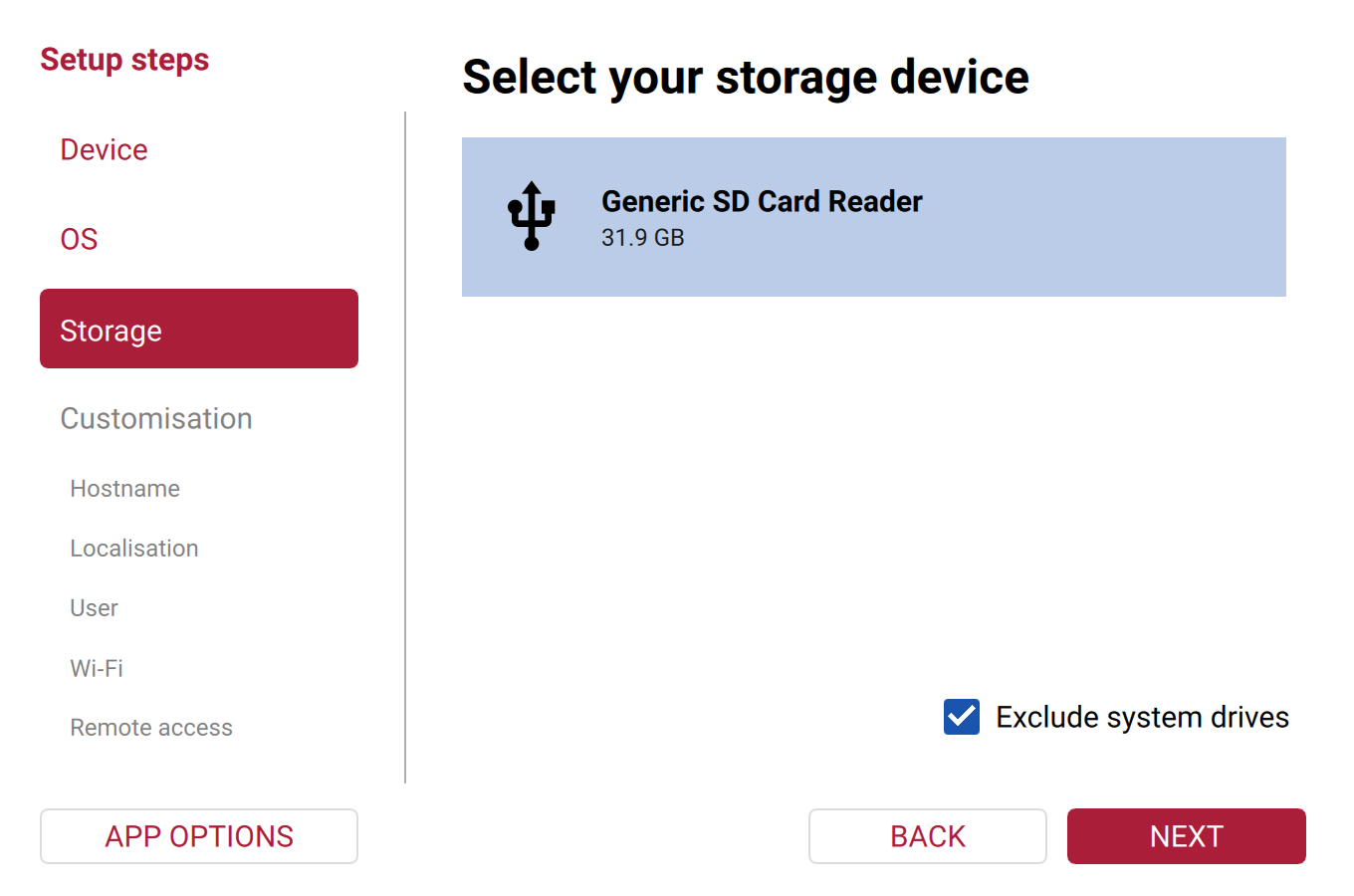
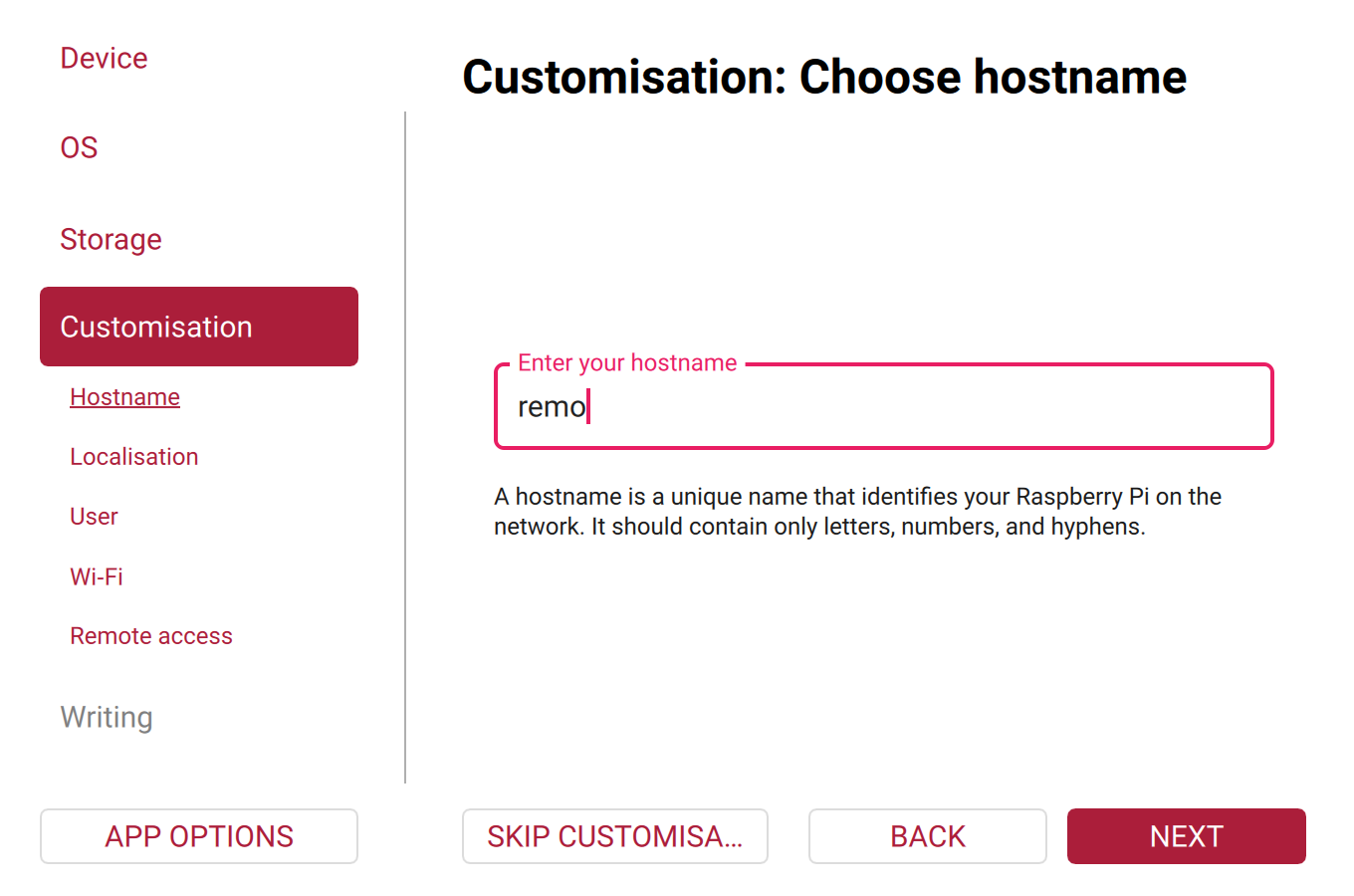
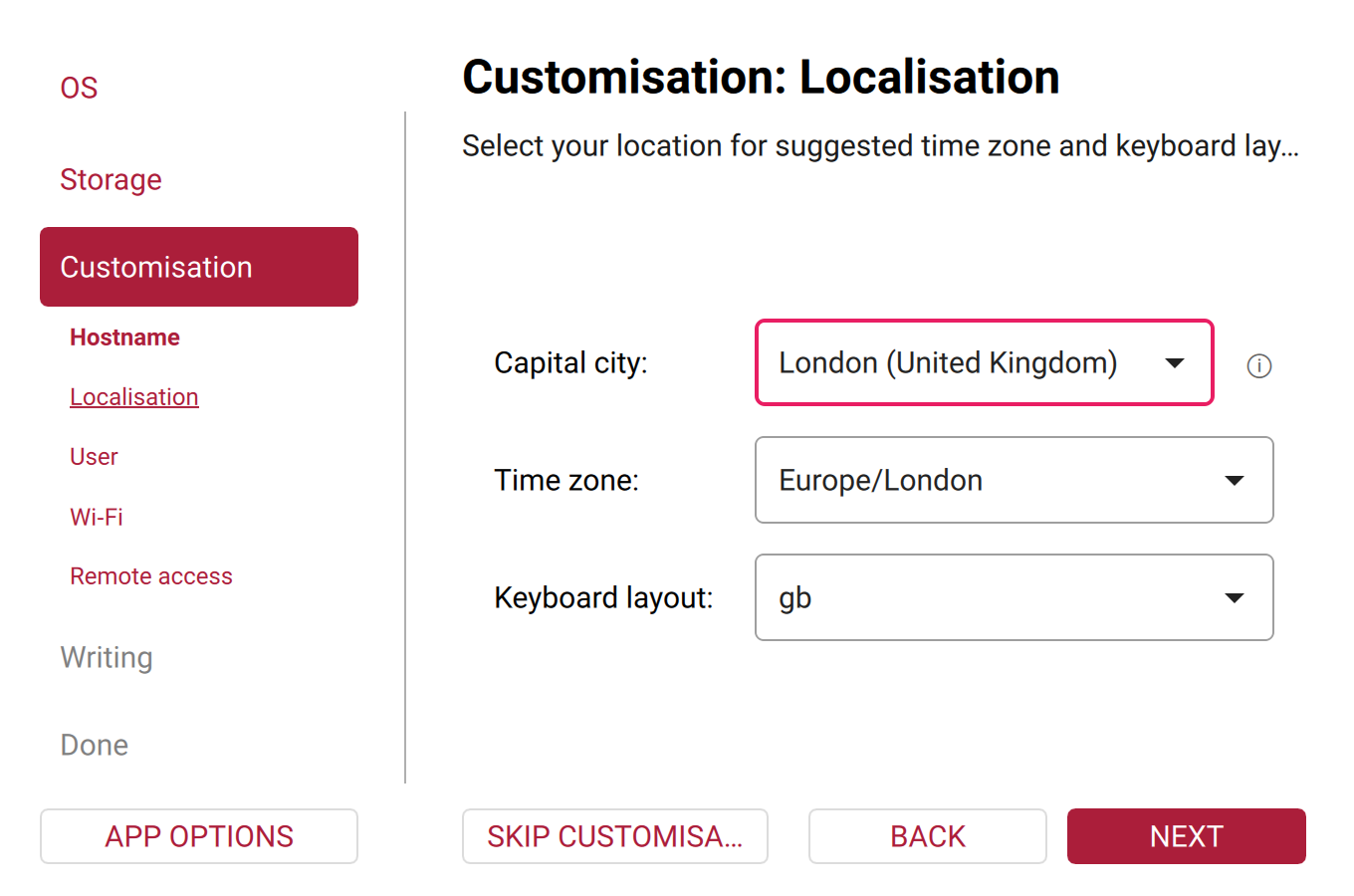
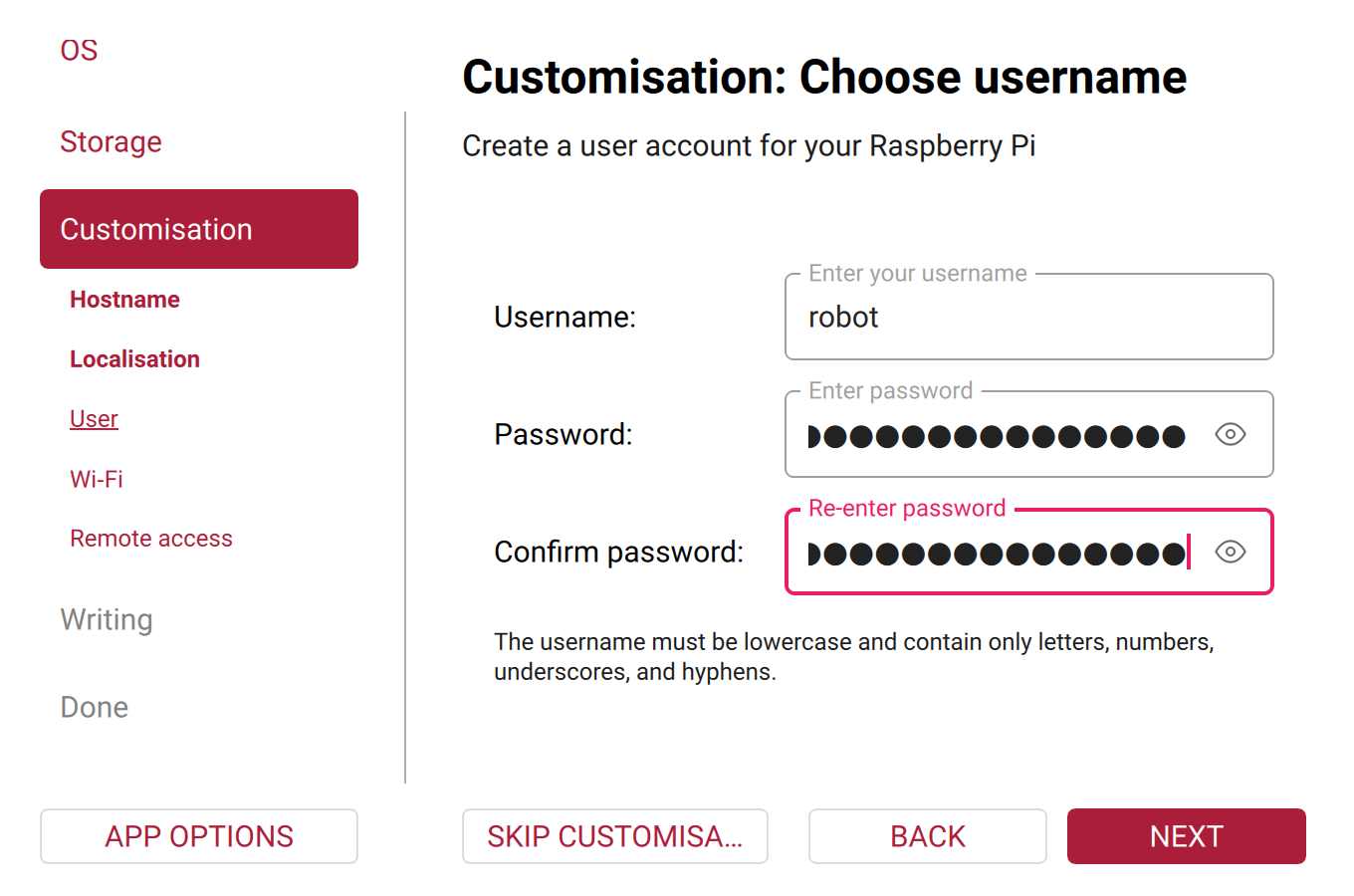
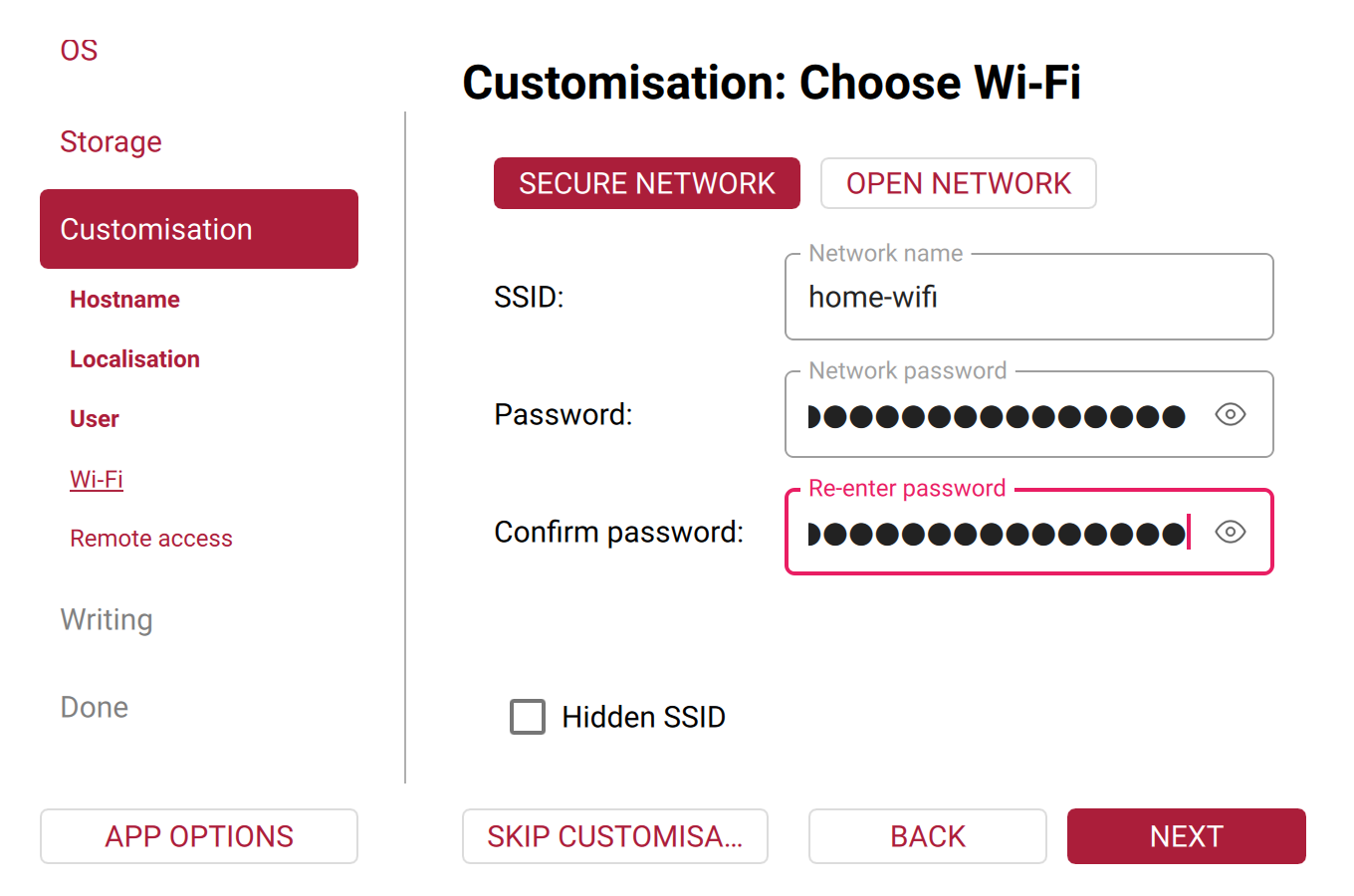
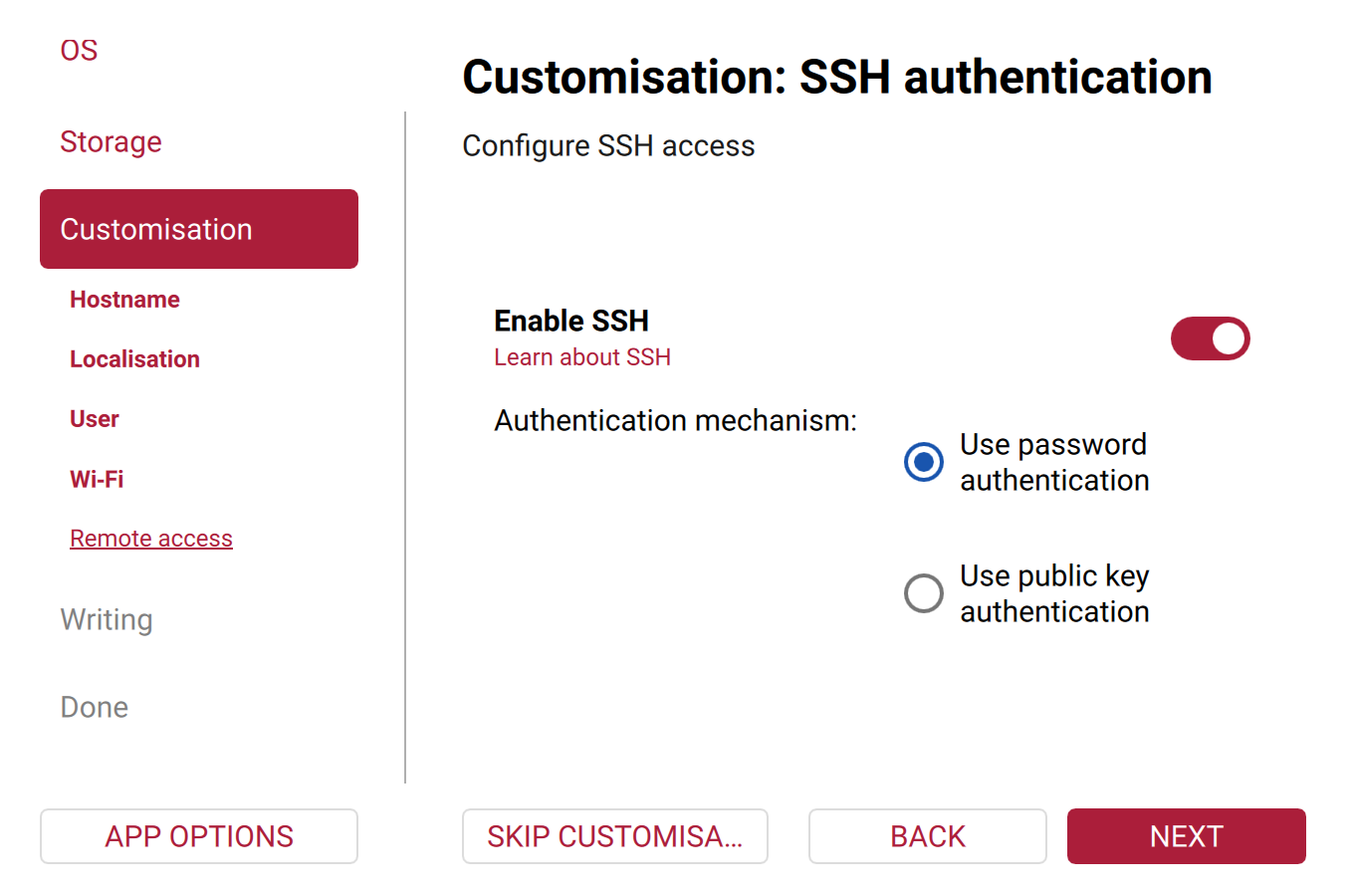
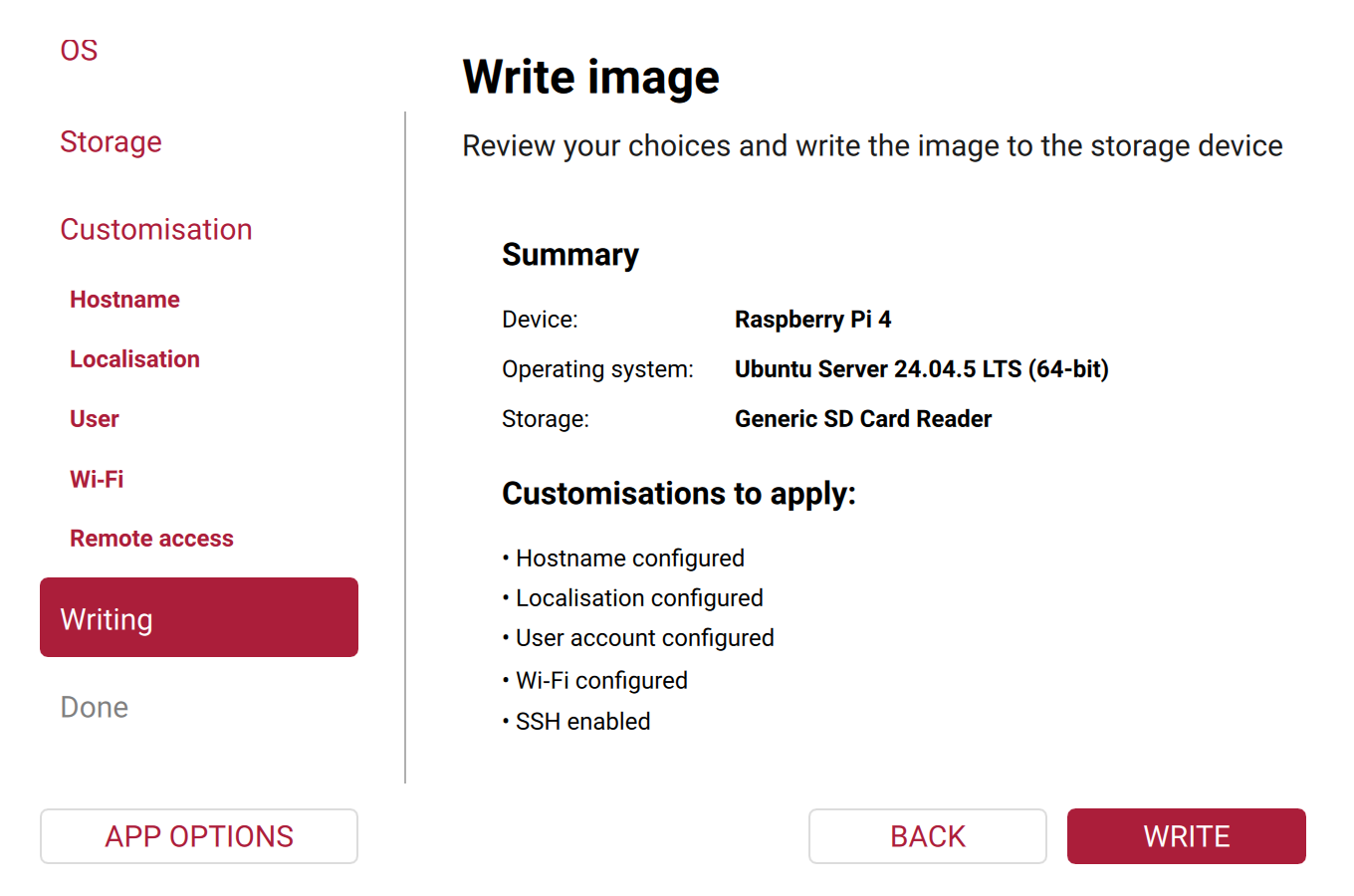
The screenshots show Raspberry Pi Imager 2.0.12 with example settings, before writing. Use your own SD card, time zone, network and credentials. Ubuntu's guide shows the same steps.
2. First login and updates
The first boot takes a few minutes, while Ubuntu applies Imager's settings. Then find the Raspberry Pi's IP address in your router's list of devices. The Raspberry Pi gets its address from the router by DHCP, and when it asks for one, it also sends its hostname, so the router lists it under that name (SendHostname=, on by default). Then log in from your PC, with the user name from Imager and that address:
1 | |
For example ssh robot@192.168.1.20. Once the first boot has finished, ssh robot@remo.local works too, with your hostname, from PCs that look up .local names (Names instead of addresses in step 3).
All further steps run in this SSH session, on the Raspberry Pi. Wait until the first-boot setup has finished, then install the current updates and restart:
1 2 3 | |
cloud-init status --wait: cloud-init is the tool that applies Imager's settings on the first boot: the hostname, the user, Wi-Fi and SSH. It also installs Avahi (step 3), so it may still be installing packages when you log in. The command returns when cloud-init is done.sudo apt update && sudo apt full-upgrade: the system on the SD card is as old as the image.apt updatefetches the lists of available packages, andapt full-upgradeinstalls all updates published since, the Linux kernel included. Ubuntu installs security updates by itself, once a day (automatic updates). All other updates, such as bug fixes, come only with this command, so run it from time to time.sudo reboot: restarts the Raspberry Pi, so that it runs the new kernel. After the restart, log in again.
To check that the Raspberry Pi runs the new kernel, compare these two after the restart:
1 2 | |
uname -r shows the kernel that runs, for example 6.8.0-1064-raspi. dpkg-query shows the newest installed version of Ubuntu's kernel for the Raspberry Pi, for example 6.8.0-1064.68. The first part, 6.8.0-1064, must be the same in both. When an update needs a restart, Ubuntu's login message says System restart required until you restart.
3. Fixed IP addresses
ROS on the robot and on your PC find each other by IP address. Two settings hold the addresses, on both machines:
ROS_MASTER_URI: where the ROS master runs. That's usually your PC, where you startroscore. Both machines get the same value:http://, the PC's address and11311, the master's port.ROS_IP: the machine's own address. The Raspberry Pi gets its own, and the PC its own. ROS tells the other machine to reach this machine's nodes at this address.
With this page's example addresses, 192.168.1.10 for the PC and 192.168.1.20 for the Raspberry Pi, the Raspberry Pi gets in its settings:
| Raspberry Pi: .docker/robot/.env | |
|---|---|
1 2 | |
and your PC, as in ROS Network Setup:
| PC: in the dev container | |
|---|---|
1 2 | |
So neither address may change. Give both machines a fixed address in your router: most routers call this a DHCP reservation or static lease. ROS's own pages explain the two variables, ROS_MASTER_URI and ROS_IP, and how to check the network (ROS/NetworkSetup).
Names instead of addresses
In step 2, cloud-init also installed Avahi, a service that announces the Raspberry Pi's name on the network as remo.local, with your hostname. So ssh robot@remo.local works from PCs that look up these names, as Ubuntu Desktop and macOS do.
ROS uses the IP addresses anyway, because the robot containers and the dev container can't look up .local names. A program looks up a name through the system's C library, which asks the sources listed in /etc/nsswitch.conf. In the containers, these are only the file /etc/hosts and DNS servers, such as your router. .local names aren't in DNS: the device with that name answers for it itself, when asked over multicast DNS (mDNS). On Ubuntu Desktop, the package libnss-mdns adds mDNS to that list, and asks Avahi. The container images have neither. Adding them would mean changing both images and running Avahi on your PC too, so this page uses IP addresses.
4. The clock
ROS compares time stamps from the robot and the PC, for example to match a lidar scan with the robot's pose, so both clocks have to be right. The Raspberry Pi 4 has no battery-backed clock: after switching it on, its time is wrong until it has synchronized over the network. Check on the Raspberry Pi:
1 | |
It shows System clock synchronized: yes once the clock is right. Ubuntu's time service, systemd-timesyncd, asks time servers on the network (NTP), for example Ubuntu's own or one your router announces. It doesn't synchronize with your PC, but your PC sets its clock from time servers too, so both agree. The container uses the Raspberry Pi's clock, so it needs no setup of its own.
timedatectl timesync-status shows the details (time synchronization). Its most important lines:
Server: the time server that the Raspberry Pi asks, for examplentp.ubuntu.com.Offset: how far the Raspberry Pi's clock was off at the last comparison with the server. systemd-timesyncd then corrects it.Poll interval: how often it asks. It starts at 32 seconds and grows up to 34 minutes while the clock stays steady (timesyncd.conf).
5. Docker Engine
Docker Engine builds the image and runs the containers. Install it the same way as on your PC (Set Up Your PC):
Docker's guide Install Docker Engine on Ubuntu, section Install using the apt repository, works the same on the Raspberry Pi, whose Ubuntu is the arm64 version. These are its commands, as of October 2026. If the guide has changed since, follow the guide.
First, add Docker's package repository:
1 2 3 4 5 6 7 8 9 10 11 12 13 14 15 16 | |
ca-certificatesandcurldownload files over HTTPS.- The key in
/etc/apt/keyrings/docker.asclets apt check that the packages come from Docker. docker.sourcesadds Docker's repository for your Ubuntu version,noblefor 24.04, and your processor architecture,arm64on the Raspberry Pi.apt updatereads the package list of the new repository.
Then install the packages from it:
1 2 | |
Without the repository, apt doesn't know these packages and stops with Unable to locate package.
Ubuntu has its own Docker packages, so they need no other repository. Docker calls them unofficial, and they can be older than Docker's releases:
1 | |
Then let your user run Docker without sudo, log out, and log in again so the new group applies (post-installation steps):
1 2 | |
After logging in again, check that Docker works:
1 | |
What these packages are for
- Docker Engine (
docker-ce, ordocker.iofrom Ubuntu): the background servicedockerd, which builds images and runs containers. containerd is the part underneath that starts the containers. - The Docker CLI (
docker-ce-cli, part ofdocker.ioin Ubuntu): thedockercommand. - Buildx (
docker-buildx-pluginordocker-buildx): the builder thatdocker buildand Compose use. - Compose (
docker-compose-pluginordocker-compose-v2): thedocker composecommand. It reads acompose.yamlfile that describes the containers, their devices and their settings, so one command starts them all.
That's all the robot needs: it builds one image and runs it with Compose. Members of the docker group can control Docker without sudo, which amounts to root access on the Raspberry Pi (Docker's security notes).
6. The diffbot repository
On the Raspberry Pi, clone the diffbot repository into your home folder:
1 2 | |
Git is already installed on Ubuntu Server. Cloning needs no GitHub account and no Git settings: your name, email and editor only matter when you commit changes (Git and GitHub). The robot's Docker files are in .docker/robot. The dot at the start of the folder name hides it from a plain ls, like .github. In this repository, it marks folders for tools, apart from the ROS packages. It's not Docker's own settings folder ~/.docker.
After the next steps, the robot's files are in these places on the Raspberry Pi:
1 2 3 4 5 6 7 | |
.env is a copy of env.example with your settings. Inside the containers, the user is ros, with a home folder of its own. The robot's ROS packages are built into the image, so every container started from it has them, in the workspace catkin_ws:
1 2 3 4 5 6 7 | |
Image and Tests explains how the workspace gets into the image. .ros isn't part of the image: Compose mounts the Raspberry Pi's folder ~/robot-data there, so the logs stay on the Raspberry Pi when the containers are removed.
7. Stable device names
The Linux kernel numbers serial devices in the order they appear, so the Teensy isn't always /dev/ttyACM0. udev, the service that creates the device files, can add fixed names by rules. The repository's rules name the Teensy /dev/teensy and the lidar /dev/rplidar, recognized by their USB vendor and product IDs:
1 2 3 4 | |
cpinstalls the rules where udev reads them. The number99makes them come after the system's own rules.udevadm control --reload-rulesmakes udev read its rule files again (udevadm).udevadm triggerreplays the events of the devices that are already plugged in, so they get the new names without unplugging them.ls -lshows the new names as links to the kernel's devices, for example/dev/teensy -> ttyACM0, for the devices that are plugged in.
lsusb lists the USB devices with their IDs: the Teensy is 16c0:0483, the lidar's USB adapter 10c4:ea60. Two devices with the same IDs need a rule with their serial number, as the rules file explains.
8. The folder for logs
1 2 | |
The containers write ROS's log files into this folder. Inside the container, they run as the user ros with the user ID (UID) 1000, so the folder must be writable for UID 1000. The first user on Ubuntu, the one from Imager, usually has that ID, which id -u shows. If it shows another number, give the folder to UID 1000: sudo chown 1000:1000 ~/robot-data.
9. Settings
The settings are in the file .env in the folder ~/diffbot/.docker/robot, next to compose.yaml. Create it from the template env.example, which explains each setting, and edit it, on the Raspberry Pi:
1 2 3 | |
For Remo with a lidar and the ROS master on your PC, it contains, besides comments:
| .docker/robot/.env | |
|---|---|
1 2 3 4 | |
- The robot this Raspberry Pi is in:
remoordiffbot. It selects the robot model and the controller's wheel radius and separation. With the other robot's model, the controller computes the wheel speeds and the odometry with the wrong wheel geometry, and the robot's frames are the other robot's. - Starts the lidar driver too. Leave this line out on a robot without a lidar. To switch the lidar off later, run
docker compose downwhile the line is still there, then remove it: without it, Compose doesn't stop the lidar container anymore. - The PC that runs
roscore:http://and the PC's IP address, and11311, the ROS master's port (ROS_MASTER_URI). - The Raspberry Pi's own IP address. ROS tells the other nodes to reach the robot's nodes at this address (
ROS_IP).
On your PC, set ROS_MASTER_URI to the same value, and ROS_IP to the PC's own address, as in step 3. Without ROS_MASTER_URI, the bringup starts its own ROS master on the robot, which is enough to check the robot alone.
When Compose reads .env
Neither the Raspberry Pi's shell nor the containers read .env. Docker Compose does:
- Each time you run
docker composein~/diffbot/.docker/robot, withup,ps,logs,downor any other command. Compose reads.envfrom that folder and fills its values intocompose.yaml, wherever it says${NAME}(variable interpolation).docker compose configshowscompose.yamlwith the values filled in. - When
docker compose upcreates the containers.ROS_MASTER_URI,ROS_IPandROS_HOSTNAMEbecome environment variables inside them. roslaunch and the nodes read them when they start, to find the ROS master and to tell the other nodes where they can be reached. The other settings stay with Compose: they choose the devices, the group, the logs folder, the robot model and, withCOMPOSE_PROFILES, which containers run. - A running container keeps the values it was created with. After changing
.env, rundocker compose up -dagain: Compose recreates the containers whose settings changed.
A variable with the same name in the Raspberry Pi's shell wins over .env (precedence), for example an export ROS_MASTER_URI=… in ~/.bashrc, left from a native ROS installation. docker compose config --environment lists the values that Compose uses.
All settings
| Setting | Default | What it's for |
|---|---|---|
ROBOT_MODEL |
remo |
remo or diffbot, the robot the container runs on |
COMPOSE_PROFILES |
not set | lidar starts the lidar container too |
ROS_MASTER_URI |
not set | The ROS master on the PC. Without it, the bringup starts a master on the robot |
ROS_IP |
not set | The robot's own IP address. ROS_HOSTNAME with a name works too, if the PC can look up that name |
TEENSY_DEVICE, LIDAR_DEVICE |
/dev/teensy, /dev/rplidar |
The serial devices on the Raspberry Pi, from step 7 |
DIALOUT_GID |
20 |
The number of the group that owns the serial devices on the Raspberry Pi |
ROBOT_DATA |
~/robot-data |
The folder for logs, from step 8 |
Why DIALOUT_GID is a number
Inside the container, the user ros may open the Teensy's device only as a member of the group that owns it, dialout on Ubuntu. Docker can add a group to the container's user by name or by number, but it looks a name up in the container's own list of groups, where the same name could have another number than on the Raspberry Pi. So compose.yaml adds the Raspberry Pi's group by its number. On Ubuntu that's 20, the default. To check, on the Raspberry Pi:
1 | |
stat shows a file's details, and %g its group's number. -L follows the link /dev/teensy to the real device. Without it, stat shows the group of the link itself. Write the number into .env: Compose doesn't run commands in it.
How compose.yaml uses the settings
compose.yaml describes two services, bringup and lidar. A service is a container that Compose starts, with its image, devices and settings. What both containers share is written once, in the block x-robot, and each service takes it over with <<: *robot (lines 17–42):
| compose.yaml | |
|---|---|
17 18 19 20 21 22 23 24 25 26 27 28 29 30 31 32 33 34 35 36 37 38 39 40 41 42 | |
network_mode: host(line 21): the containers use the Raspberry Pi's network directly, so their ROS nodes are reachable at its IP address, like native ones. ROS 1 needs this: besides the master's port 11311, every node opens its own random port, and the other nodes connect to it directly (ROS Network Setup).group_add(lines 24–25): the group with the number fromDIALOUT_GID.environment(lines 26–29): the environment variables inside the containers.ROS_MASTER_URI,ROS_IPandROS_HOSTNAMEare listed without a value: Compose takes their values from.env, or from the shell, when it creates the containers. A variable that's set in neither isn't set in the containers either (environment).volumes(lines 32–37): mounts the logs folder as the containers'~/.ros, where ROS writes its logs. Compose doesn't create a missing folder: Docker would create it for root, and the userroscouldn't write into it.logging(lines 41–42): Docker's local log format. By default, it keeps at most five files of 20 MB per container and deletes the oldest, so the containers' output can't fill the SD card. Docker's default format, json-file, keeps everything unless rotation is configured.
Each service then adds what's its own (lines 44–64):
| compose.yaml | |
|---|---|
44 45 46 47 48 49 50 51 52 53 54 55 56 57 58 59 60 61 62 63 64 | |
bringup(lines 47–54):buildtells Compose how to build the image, from the Dockerfile in.docker/robot. Itscontextis the whole repository, the folder whose files the Dockerfile can copy into the image.devicespasses the Teensy into the container as/dev/ttyACM0, where the bringup's launch file expects it.commandstartsbringup.launchwith the robot model fromROBOT_MODEL.lidar(lines 58–64): runs only with the profilelidar, whichCOMPOSE_PROFILESselects. Compose starts it after the bringup (depends_on). It gets the lidar as/dev/ttyUSB0and startslidar.launch, the lidar driver alone.
Comments
Comments are GitHub Discussions, shown with giscus. Loading them connects to giscus.app (hosted by Vercel, USA) and GitHub (USA); you need a GitHub account to comment.